
Our URL Cleanup Tool is designed to help you quickly find and fix URL issues hiding across your store’s content. Over time, product descriptions, collections, pages, and blog posts can accumulate outdated links, redirected URLs, platform-specific domains, and even broken links. Left unchecked, these can hurt SEO, create inconsistent linking, and lead customers to dead ends.
This tool scans your store content in one pass and highlights URLs that need attention. You can standardize link formats, replace platform domains with your primary domain, identify redirects and 404 errors, and review every suggested change before anything is applied. The result is a cleaner, more consistent link structure without the risk of blind bulk edits.
Use URL Cleanup whenever you migrate platforms, change domains, or simply want to ensure your internal links stay healthy, accurate, and easy to maintain.
Please note, this tool is currently in beta and is available for use by invite only.
How to Run the URL Cleanup Tool
Step 1: Login and Launch the Tool
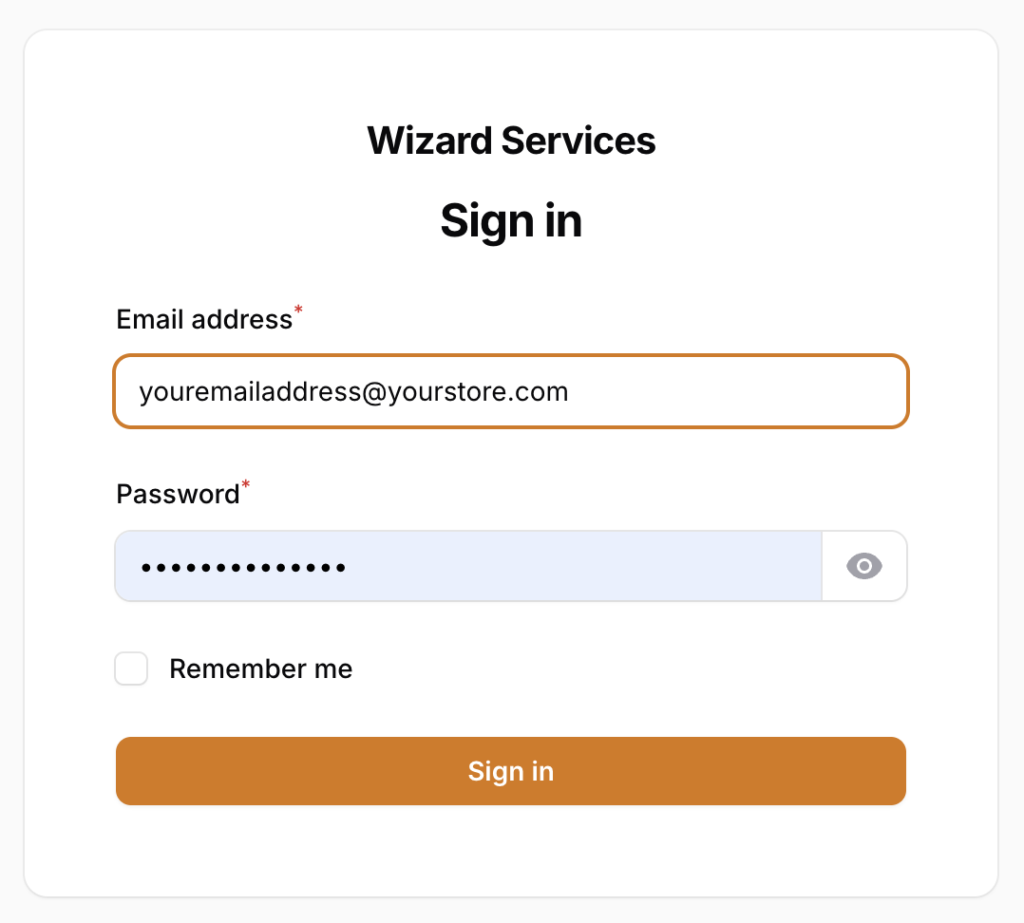
In order to run the tool, you must first log in to our portal by going to https://www.yswservices.com and logging in:
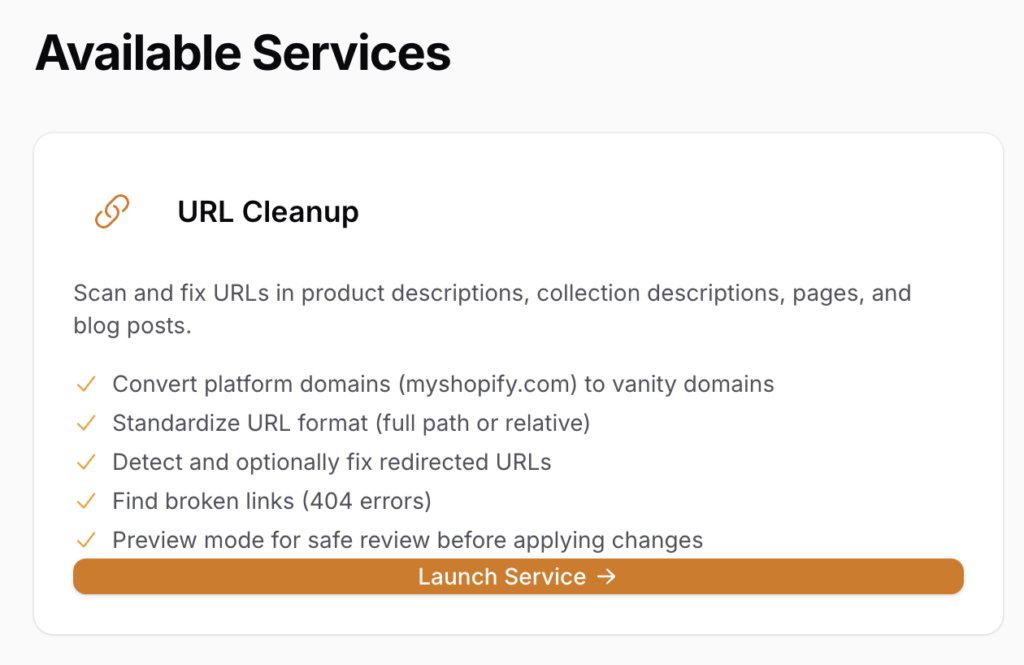
Once logged in, locate the URL Cleanup tile from available services and click on Launch Service.
Step 2: BigCommerce Users - Select Store and Scan Options
The instructions for this step are specific for stores on the BigCommerce platform.
Choose which store to scan. Only stores you have access to are shown. The scan will read content from this store's products, categories, pages, and blog posts via the platform API.
You can only run one scan per store at a time. If a scan is already running or pending for the selected store, a new scan cannot be started until it completes.

Once the store loads, you will have different options to select from; each of these is explained in detail below:
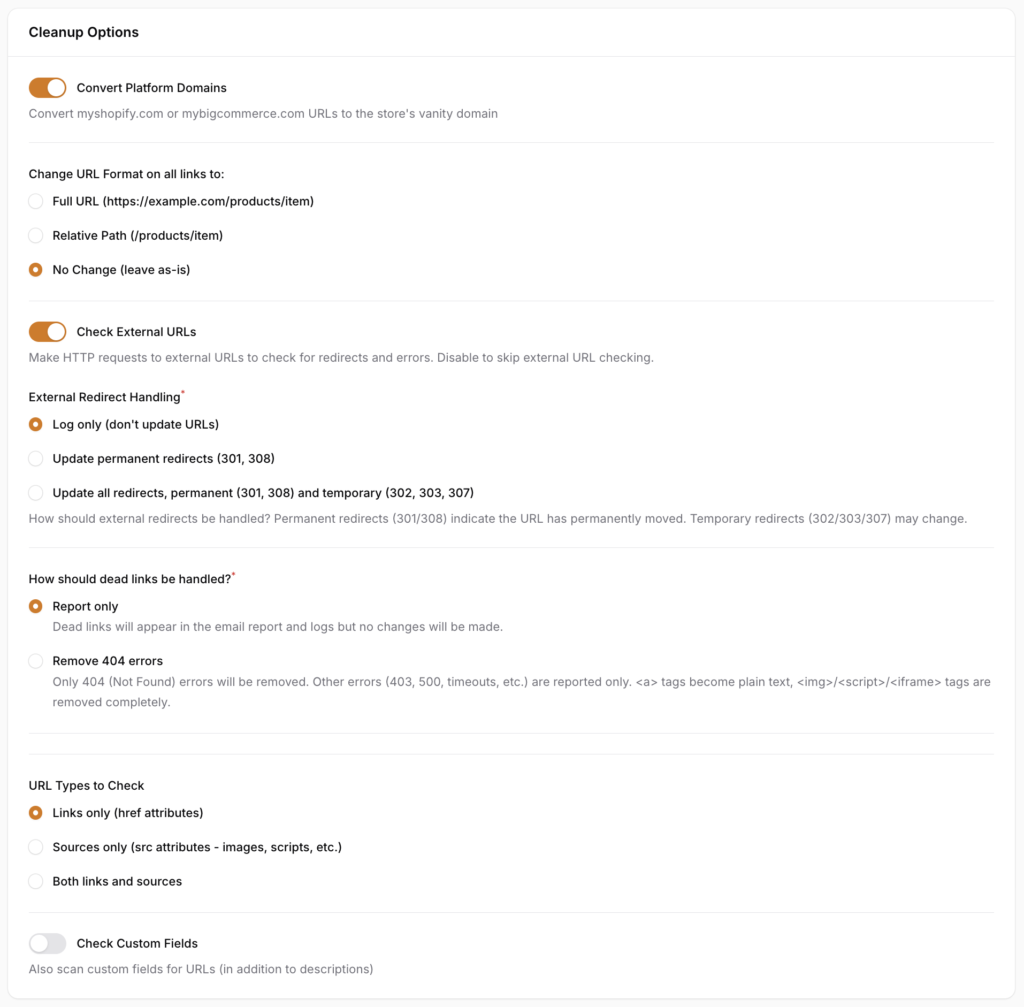
- Convert Platform Domains - when enabled, converts internal platform domain URLs to the store's vanity (custom) domain. This only applies to URLs that use the platform's default domain. URLs already using the vanity domain are left unchanged. If disabled, platform domain URLs are still detected and logged but not modified.
- Converts store-xxxxx.mybigcommerce.com URLs to yourstore.com
- Change URL Format on all links to - controls the format of internal store URLs found in content. Only applies to URLs that exactly match the store's domain (subdomains like blog.yourstore.com are never reformatted).
- Full URL - Converts to absolute URLs with the full domain (https://yourstore.com/products/widget).
- Relative Path - Converts to root-relative paths without the domain (/products/widget).
- No Change - Leaves URLs in whatever format they're already in.
- When set to Full URL or Relative Path, the scan also normalizes:
- HTTP to HTTPS (e.g., http://yourstore.com becomes https://yourstore.com)
- www removal (e.g., www.yourstore.com becomes yourstore.com, if the store's vanity domain doesn't use www)
- When set to No Change, no format conversion or normalization is performed.
- Check External URLs - when enabled, the scan makes HTTP requests to external URLs (links pointing to other websites) to check for redirects and errors. This is how the scan detects broken external links and external redirects. We currently check for 301, 302, 303, 307, and 308 redirects and allow you to either:
- Log any redirect issues - redirects are detected and recorded in the scan results but URLs in the content are not changed.
- Update permanent redirects (301, 308) - only URLs that return a permanent redirect (HTTP 301 or 308) are updated to the final destination URL. Temporary redirects are logged only. It's safe to update these - examples include domain changes like twitter.com to x.com.
- Update all redirects, permanent (301, 308) and temporary (302, 303, 307) - both permanent (301, 308) and temporary (302, 303, 307) redirects are updated to the final destination URL. Updating these is riskier since the destination could change back.
- When disabled, external URLs are skipped entirely - no HTTP requests are made and no redirect or error information is gathered for them. Internal URLs are always checked regardless of this setting.
- Internal redirects (URLs pointing to your own store that redirect) are always updated regardless of this setting, since you control those redirects.
- How should dead links be handled? Controls what happens when URLs return errors.
- Report only - Broken links appear in the scan results and CSV report but no changes are made to the content.
- Remove 404 errors - URLs that return HTTP 404 (Not Found) are removed from the content. Other error types are reported only.
- When removing 404 errors:
<a>tags (links) are unwrapped — the link is removed but the link text is preserved as plain text. Example:<a href="...">Click Here</a>becomesClick Here.<img>,<script>,<iframe>tags are removed entirely since they serve no purpose without a working source.- Metafields/custom fields containing only a URL are not emptied (to avoid breaking functionality). They are logged as errors instead.
- Error types that are reported but never removed:
- HTTP 403 (Forbidden) — may be caused by bot detection; the page could work fine in a browser
- HTTP 500 (Server Error) — temporary server issues
- Timeouts — the server may be slow or rate-limiting requests
- Too many redirects — likely a misconfiguration that may be fixed later.
- Internal link protection: Internal store links that return temporary errors (503, 502, timeout) are never removed, even with this option enabled. Internal links returning 404 can be removed since a 404 from your own store means the page genuinely doesn't exist.
- URL Types to Check - Controls which types of URLs in the HTML content are scanned. For most use cases, "Links only" is sufficient since broken or redirected links are the most common issue. "Sources only" is useful if you want to specifically check image or script references. "Both" provides the most comprehensive scan but will take longer.
- Links only - Scans link URLs -
hrefattributes (<a>,<link>) - Sources only - Scans embedded resource URLs -
srcattributes (<img>,<script>,<iframe>,<video>,<audio>) - Both links and sources - Scans all URLs - both
hrefandsrcattributes
- Links only - Scans link URLs -
- Check Custom Fields - when enabled, the scan checks custom fields for URLs, in addition to the main content fields (descriptions, body HTML). Enable this if your store uses custom fields that contain URLs (e.g., links to size charts, PDF downloads, or related resources). When disabled, only the primary content fields are scanned:
- Product descriptions
- Collection/category descriptions
- Page body content
- Blog post body content
It's important to note that no changes are made automatically! Each issue found during the scan is queued for manual review, at which time you will have the option to apply any changes.
Step 2: Shopify Users - Select Store and Scan Options
The instructions for this step are specific for stores on the Shopify platform.
Choose which store to scan. Only stores you have access to are shown. The scan will read content from this store's products, categories, pages, and blog posts via the platform API.
You can only run one scan per store at a time. If a scan is already running or pending for the selected store, a new scan cannot be started until it completes.
Once the store loads, you will have different options to select from; each of these is explained in detail below:
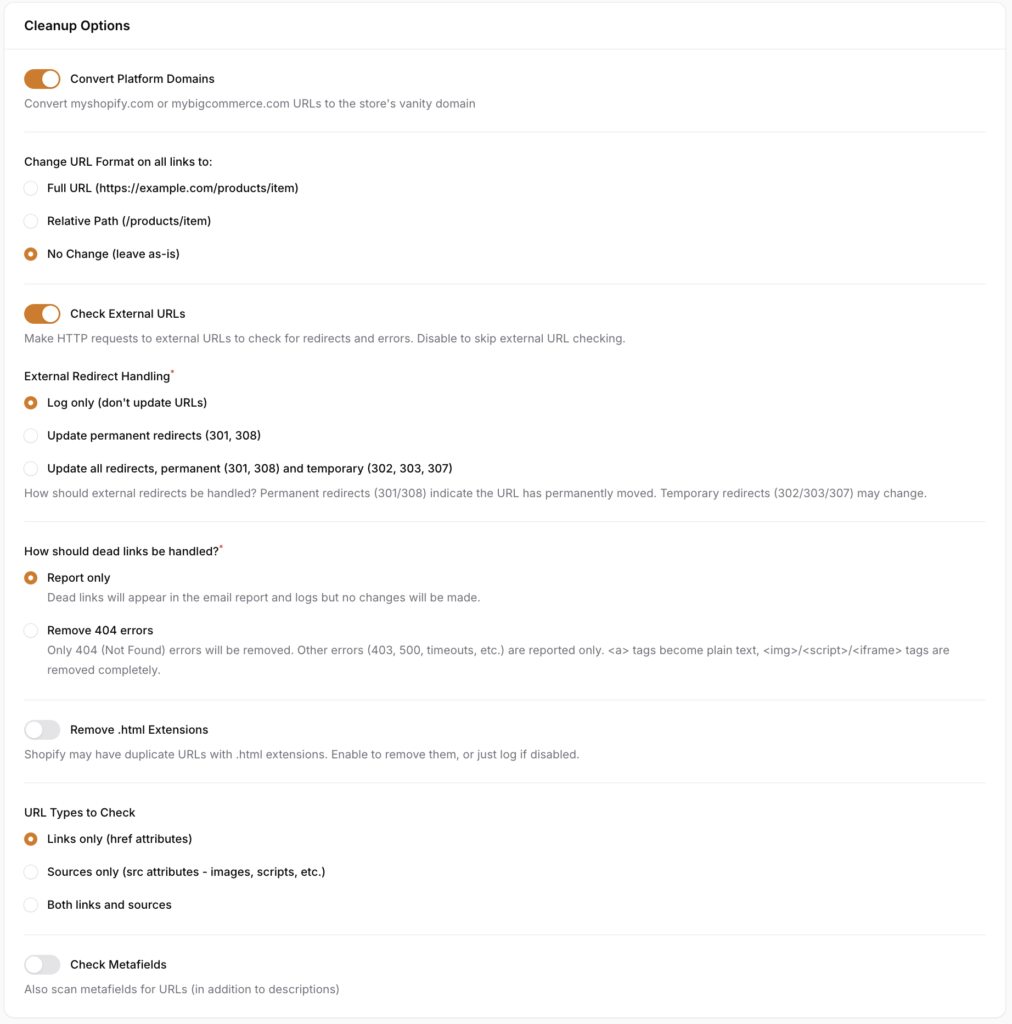
- Convert Platform Domains - when enabled, converts internal platform domain URLs to the store's vanity (custom) domain. This only applies to URLs that use the platform's default domain. URLs already using the vanity domain are left unchanged. If disabled, platform domain URLs are still detected and logged but not modified.
- Converts
yourstore.myshopify.comURLs toyourstore.com
- Converts
- Change URL Format on all links to - controls the format of internal store URLs found in content. Only applies to URLs that exactly match the store's domain (subdomains like blog.yourstore.com are never reformatted).
- Full URL - Converts to absolute URLs with the full domain (https://yourstore.com/products/widget).
- Relative Path - Converts to root-relative paths without the domain (/products/widget).
- No Change - Leaves URLs in whatever format they're already in.
- When set to Full URL or Relative Path, the scan also normalizes:
- HTTP to HTTPS (e.g., http://yourstore.com becomes https://yourstore.com)
- www removal (e.g., www.yourstore.com becomes yourstore.com, if the store's vanity domain doesn't use www)
- When set to No Change, no format conversion or normalization is performed.
- Check External URLs - when enabled, the scan makes HTTP requests to external URLs (links pointing to other websites) to check for redirects and errors. This is how the scan detects broken external links and external redirects. We currently check for 301, 302, 303, 307, and 308 redirects and allow you to either:
- Log any redirect issues - redirects are detected and recorded in the scan results but URLs in the content are not changed.
- Update permanent redirects (301, 308) - only URLs that return a permanent redirect (HTTP 301 or 308) are updated to the final destination URL. Temporary redirects are logged only. It's safe to update these - examples include domain changes like twitter.com to x.com.
- Update all redirects, permanent (301, 308) and temporary (302, 303, 307) - both permanent (301, 308) and temporary (302, 303, 307) redirects are updated to the final destination URL. Updating these is riskier since the destination could change back.
- When disabled, external URLs are skipped entirely - no HTTP requests are made and no redirect or error information is gathered for them. Internal URLs are always checked regardless of this setting.
- Internal redirects (URLs pointing to your own store that redirect) are always updated regardless of this setting, since you control those redirects.
- How should dead links be handled? Controls what happens when URLs return errors.
- Report only - Broken links appear in the scan results and CSV report but no changes are made to the content.
- Remove 404 errors - URLs that return HTTP 404 (Not Found) are removed from the content. Other error types are reported only.
- When removing 404 errors:
<a>tags (links) are unwrapped — the link is removed but the link text is preserved as plain text. Example:<a href="...">Click Here</a>becomesClick Here.<img>,<script>,<iframe>tags are removed entirely since they serve no purpose without a working source.- Metafields/custom fields containing only a URL are not emptied (to avoid breaking functionality). They are logged as errors instead.
- Error types that are reported but never removed:
- HTTP 403 (Forbidden) — may be caused by bot detection; the page could work fine in a browser
- HTTP 500 (Server Error) — temporary server issues
- Timeouts — the server may be slow or rate-limiting requests
- Too many redirects — likely a misconfiguration that may be fixed later.
- Internal link protection: Internal store links that return temporary errors (503, 502, timeout) are never removed, even with this option enabled. Internal links returning 404 can be removed since a 404 from your own store means the page genuinely doesn't exist.
- Remove .html Extensions - Shopify automatically creates duplicate URLs with
.htmlextensions for products, collections, blog posts, and pages. Both versions serve the same content:/products/widgetand/products/widget.htmlare the same page.- When enabled,
.htmlextensions are removed from internal URLs on recognized Shopify paths (/products/,/collections/,/blogs/,/pages/). Other.htmlURLs (like actual HTML files) are left unchanged. - When disabled, duplicate
.htmlURLs are still detected and logged in the scan results, but no changes are made.
- When enabled,
- URL Types to Check - Controls which types of URLs in the HTML content are scanned. For most use cases, "Links only" is sufficient since broken or redirected links are the most common issue. "Sources only" is useful if you want to specifically check image or script references. "Both" provides the most comprehensive scan but will take longer.
- Links only - Scans link URLs -
hrefattributes (<a>,<link>) - Sources only - Scans embedded resource URLs -
srcattributes (<img>,<script>,<iframe>,<video>,<audio>) - Both links and sources - Scans all URLs - both
hrefandsrcattributes
- Links only - Scans link URLs -
- Check Metafields - when enabled, the scan checks metafields for URLs, in addition to the main content fields (descriptions, body HTML). Enable this if your store uses metafields that contain URLs (e.g., links to size charts, PDF downloads, or related resources). When disabled, only the primary content fields are scanned:
- Product descriptions
- Collection/category descriptions
- Page body content
- Blog post body content
It's important to note that no changes are made automatically! Each issue found during the scan is queued for manual review, at which time you will have the option to apply any changes.
Step 3: Choose a Limited or Full Run
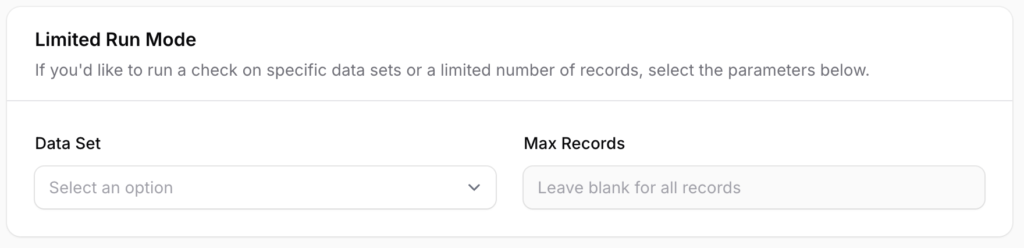
Use these options to narrow the scope of the scan for testing or targeted checks:
- All Types - Scans products, collections, pages, and blog posts
- Products Only - Scans only product descriptions (and metafields if enabled)
- Collections Only - Scans only collection/category descriptions
- Pages Only - Scans only page body content
- Blog Posts Only - Scans only blog post body content
You can also choose the number of records to check using Max Records. For example, entering 50 will scan only the first 50 items of the selected data set. Leave blank to scan all records.
This is useful for testing your scan settings on a small sample before running against the full store.
Step 4: Add Any Notes and Run Scan
Before running the scan, you have the ability to add any notes about the run itself for future reference by clicking on the Run Notes box. Use this to document the purpose of the run, specific items you're checking, or any other context.
Notes appear in the run history table (indicated by an asterisk *) and on the review page. Hovering over the asterisk in the run history shows the full note as a tooltip.
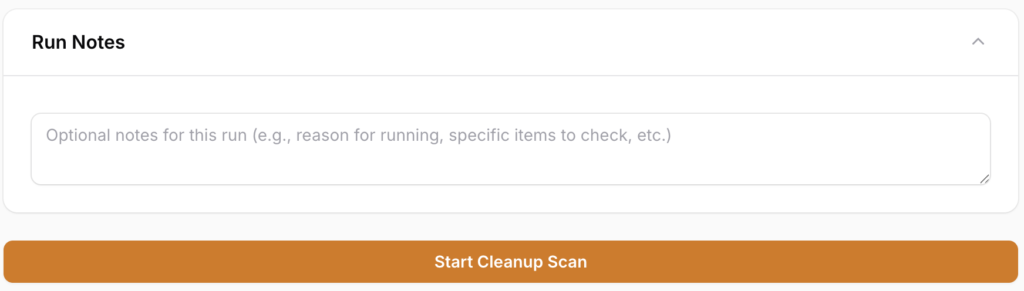
Once you're ready to begin, click Start Cleanup Scan.
When a scan runs, each URL found in the content is processed through these steps in order:
- URL Replacement List - If enabled, check for a match in the replacement list. If found, use the replacement and skip remaining steps.
- Platform Placeholder Conversion - Convert BigCommerce placeholders (
%%GLOBAL_ShopPathSSL%%) to actual URLs. - Platform Domain Conversion - Convert platform domains (myshopify.com / mybigcommerce.com) to vanity domain.
- URL Format Normalization - Apply URL format setting (full/relative) and normalize protocol (http to https) and www prefix.
- Redirect & Error Checking - Make HTTP requests to check for redirects and errors. Internal redirects are always updated. External redirects follow the external redirect handling setting.
- .html Extension Removal - (Shopify only) Remove
.htmlextensions from recognized paths.
If a URL returns an error (other than 404 with removal enabled), any transformations from earlier steps are discarded - broken URLs are not modified.
Step 5: Await Results
Once the scan has started, you can see the process in the Run History. Depending on the size of your store, or the number of records selected to check, the process may take a short or extended amount of time to complete.
You do not need to stay on the page for the scan to run.
When a scan completes, you receive an email notification with a CSV attachment of all findings. From the run history table on this page, you can:
- Logs - View the detailed log of all URLs found and their statuses
- CSV - Download the scan results as a CSV file
- Review - Open the review page to selectively apply or reject the proposed changes
All changes are held in a "pending" state until you explicitly apply them from the review page. Nothing is modified on your store until you approve it.
Reviewing Results and Applying Changes
Step 1: Go to Run History
Once a scan has completed, you can view the results and take action on specific issues by viewing the Run History:
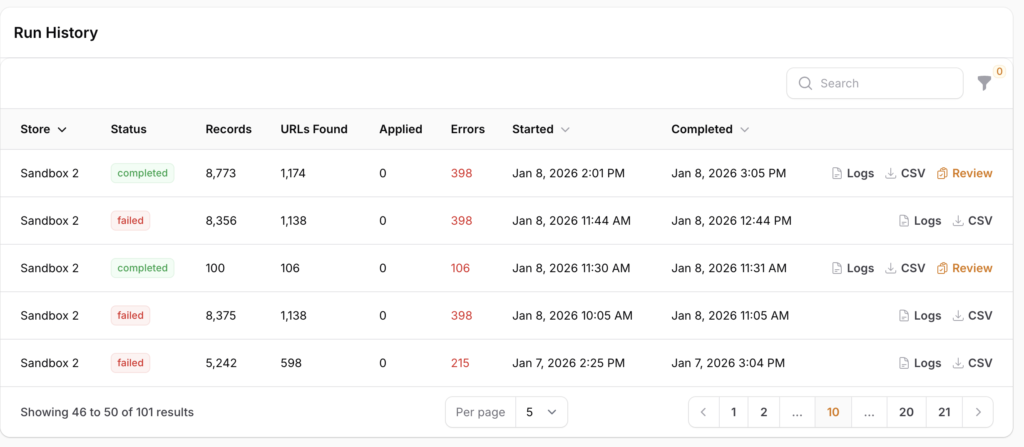
This overview will give you details on each scan, including:
- Store - the name of the store the scan was run on.
- Status - whether the scan completed successfully, or failed due to some external error.
- Records - number of records checked during the scan.
- URLs Found - number of URLs found during the scan.
- Applied - number of fixes applied after a manual review.
- Errors - number of errors, or issues, found during the scan that are set for manual review.
- Started / Completed - start and run times of the job
Scans that completed successfully, will also have links to:
- Logs - a link to a detailed look at the stats and individual findings for the selected scan. This is a visual representation of the same data included in the CSV file.
- CSV - a downloadable link to the CSV file, which was emailed, containing all issues found during the scan.
- Review - a link to review each issue found with the ability to take manual action on each.
Step 2: Optional - View Logs
The run log is the same data that is included in the emailed and downloadable CSV file, but in a viewer-friendly format.
If you'd like to view the logs for the selected scan, click on the Logs link for further details:
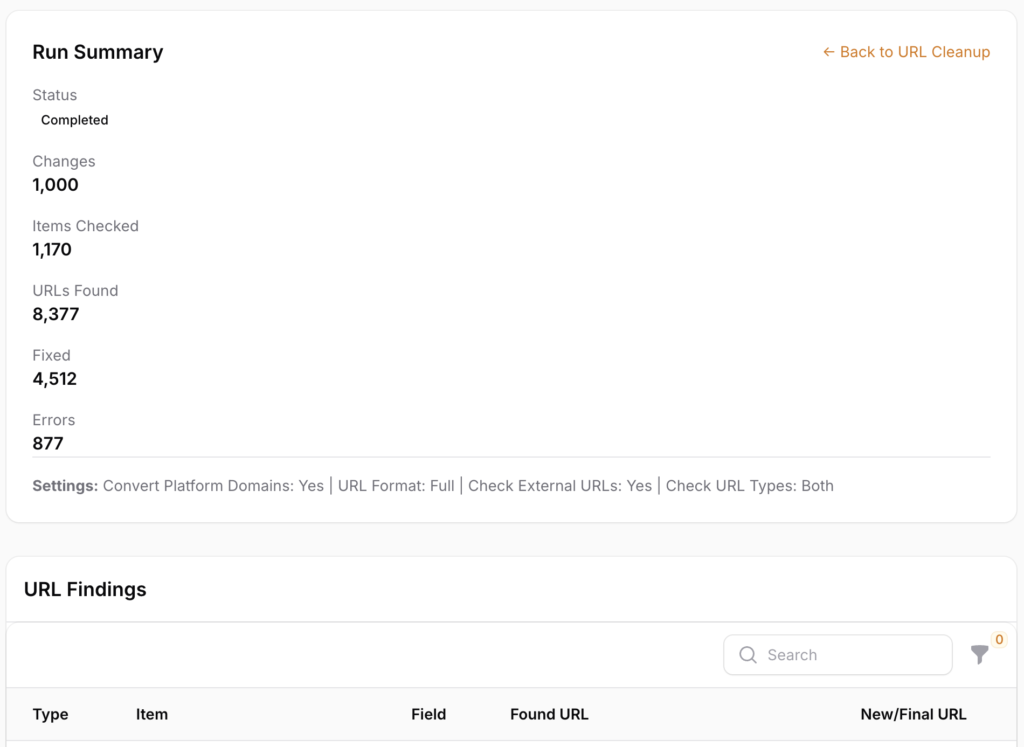
The Run Summary will show you stats related to the run, along with the settings you chose, and any notes you entered.
The URL Findings area has details on each issue found, including:
- Type - product, category/collection, page, or blog post.
- Item - the name of the product, category/collection, page, or blog post.
- Field - the field where the URL was found.
- Found URL - the URL that the scan found which needs attention.
- New/Final URL - the URL that the scan suggests it be changed to.
- Status - there are various status messages assigned to different findings, including:
- Updated Redirect - a URL was found that is being redirected, the suggested URL is the new landing URL.
- URL Normalized - a URL was found that matched the "Convert Platform Domains" setting for the scan.
- To Be Removed - a 404 was found and the dead link should be removed.
- Notes - details of what the scan found for the selected record.
- Time - timestamp for when it was found.
- View Item - link to the live page in the store.
Step 3: Review Results and Take Action
Once the scan completes, it's time to take action and begin cleanup!
From the Run History, click on Review to see the scan results and queue items up for fixing.
Each individual issue that the scan found is listed and can be selected for cleanup.
It's important to review each issue before committing a change.
To review a specific issue, click the + next to it to expand the details:

In this example, the blog post called Why Buy Wholesale Snack Foods? was found to have a URL in the body copy that contained a URL that is being directed. The scan suggests that the redirecting URL be updated to the final URL.
To make this change, simply click the checkbox for this record.
After reviewing all the records and selecting which ones to have the tool automatically change, scroll to the bottom of the page and select Update Selected.

The tool will queue these changes to be processed and automatically applied to the select pages in your store.
The record status will change from Pending to Updated once the change has been applied.
If you need to revert a change that has been already applied, simply select the record/records you want to revert, scroll to the bottom of the page, and choose Revert Selected.

Using URL Replacements
Overview of URL Replacements
The tool lets you upload a CSV file with URL replacements. You tell it “when you see this URL, replace it with that one.”
These aren’t redirects, but the idea is similar and meant purely for cleanup.
When enabled, the scan checks each URL against the store's uploaded replacement list before any other processing. If a match is found, the URL is replaced with the mapped destination.
Replacement list mappings are managed on the URL Replacements page. You can upload a CSV file with two columns: the original URL and the replacement URL.
How it works:
- Each URL found in the content is checked against the replacement list first.
- If a match is found, the replacement URL is used.
- The replacement URL is still verified via HTTP request - if it redirects, the final destination is used; if it errors, the error is logged.
- If no match is found, the URL goes through the normal processing steps (platform domain conversion, format conversion, redirect checking, etc.).
The toggle label shows the number of active mappings (e.g., "Use URL Replacement List (42 mappings)").
Step 1: Create Your CSV File
In order to use URL replacements, you must first create a CSV file. The file simply needs to have two columns and a header row. Column 1 should have a header called from_url and the Column 2 should have a header called to_url.
The from_url record should have the URL that you want replaced by the URL in the to_url record.
URLs need to be in full https://domain.com format.
Step 2: Upload Your CSV File
Once your file has been created, click on URL Replacements from the dashboard.
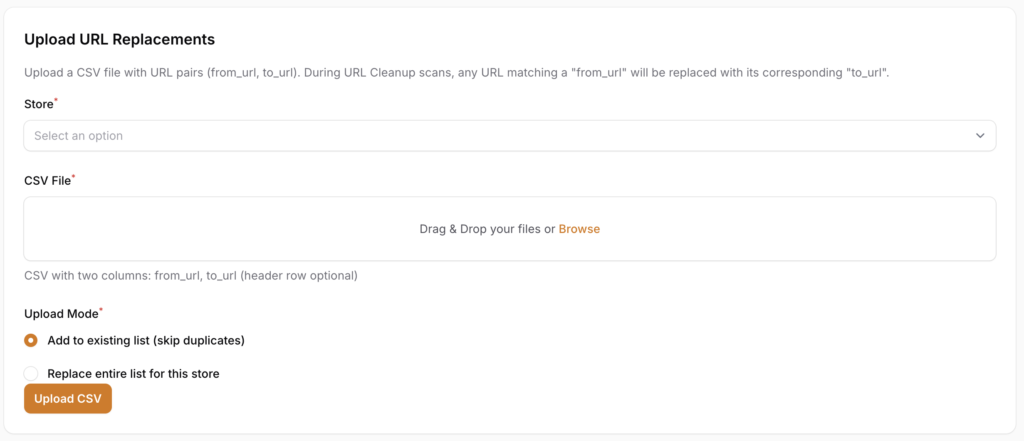
Select the store you're uploading to from the drop-down, then select your CSV file.
You can then select which Upload Mode to use:
- Add to existing list (skip duplicates) allows you to append the current file to any existing URLs previously loaded. This is useful for keeping a running list of URLs for future cleanup.
- Replace entire list for this store allows you to remove any existing URLs previously loaded and replace them with this file.
Once you're ready to upload, click Upload CSV.
You can view the list of replacement URLs at the bottom of the page and edit or delete as necessary.
Last update, February 11, 2026